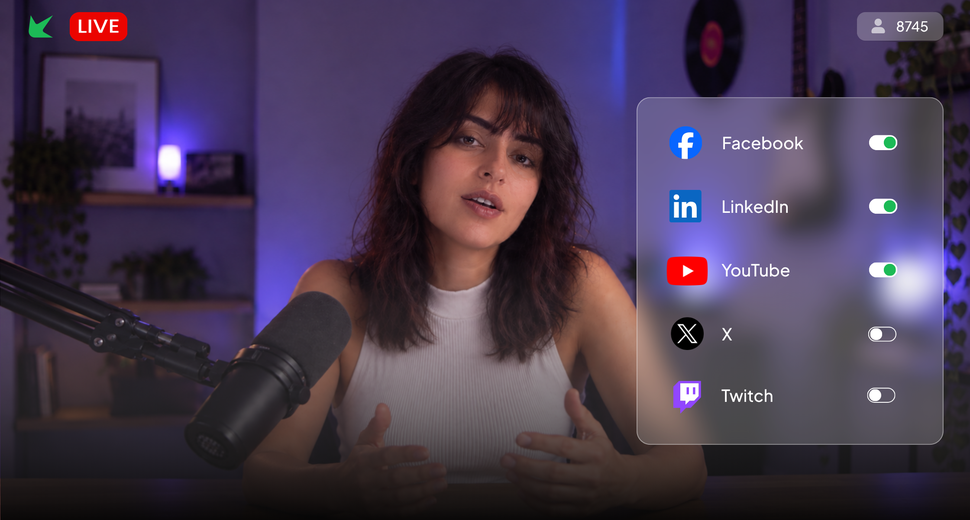
Is your audience on YouTube, LinkedIn, Instagram, X or Twitch? With multistreaming, you can now broadcast the same live event to multiple platforms simultaneously from Sparkup. Bring your speakers together and produce your show in the live video studio, then send the program to the destinations you have chosen for your audience.
At a glance
Multistreaming lets you broadcast a single live program to several platforms. Sparkup supports up to ten simultaneous destinations. Its new multistreaming mode, available when you create a session, lets you produce your event in Sparkup while your entire audience watches on external platforms.
One live event, multiple places to watch
Your LinkedIn community, YouTube subscribers, and employees do not necessarily use the same channels. With multistreaming, you can offer several ways to watch the same show.
Prepare your program, welcome your speakers, and manage production in Sparkup. The live feed is then sent simultaneously to your configured destinations.
Viewers follow the same content at the same time, on the platform intended for them. You maintain one production while adapting distribution to the habits of your different audiences.
Multistreaming comes to the Sparkup live video studio
The Sparkup live video studio now offers a multistreaming mode. Select it when creating your session to produce your event in Sparkup and broadcast to an audience watching entirely on external platforms.
Produce your show in Sparkup
Your production team and speakers come together in the Sparkup live video studio. From there, you manage the program sent to your different destinations.
For a panel discussion, for example, your guests join a single session. Their conversation can be broadcast simultaneously to your LinkedIn community and YouTube subscribers.
Speakers deliver their content once. The production then feeds the channels selected for the event.
Choose where your audience joins you
Multistreaming mode lets you keep the viewing options your audience already uses.
Your community can watch on your YouTube channel. Your professional network can discover the event on LinkedIn. Employees or invited guests can follow it in the environment chosen by your organization.
This choice becomes part of event preparation. You decide where to produce the program and where viewers will watch it.
Broadcast to up to ten destinations simultaneously
Sparkup can send your program to a maximum of ten destinations at once.
You can tailor distribution to several communities or groups of viewers. Your destination choices should reflect your objective: reaching the right people on the platforms they use.
For each channel, provide a clear access link and appropriate event communications. Viewers should know where to join, when the event starts, and whether any access requirements apply.
Which events can you stream across multiple platforms?
Multistreaming can support product launches, expert discussions, and company communications. It is particularly useful when a single program is relevant to audiences in several different environments.
A product launch for several communities
Presenting something new to customers, prospects, and partners? Broadcasting simultaneously to multiple platforms lets you share the same launch with those different audiences.
You can announce the event on each channel, then bring viewers together around the same demonstration and presentations.
The core preparation stays the same: one running order, one presentation, and one production. You adapt invitations and viewing links to the communities you want to reach.
A public panel discussion or webinar
An expert presentation may interest both your professional network and the people who regularly watch your videos.
Offering several destinations gives those audiences a familiar place to watch. Your LinkedIn audience can follow the conversation on LinkedIn, while your YouTube subscribers watch it on your channel.
Explain how to participate on each platform, particularly if you plan to collect questions during the live event.
An update for employees or invited guests
Multistreaming can also support an internal presentation, a partner meeting, or a session reserved for customers.
Produce the event in Sparkup to get a more professional and branded program, and send the program to your selected destinations, including Teams for example.
This approach gives you a shared production space while viewers watch in the environments that suit your organization.
Public or private live events, depending on your needs
Multistreaming can be used for a public event or a broadcast restricted to a specific audience. Visibility depends on the destinations you choose and their access settings.
For a public event, select the channels where you want the program to be available and prepare its promotion for each community.
For a private event, check invitations, permissions, and visibility settings on every destination. Multistreaming mode does not automatically make your broadcast private.
Check all configured platforms: a destination left public could make the program accessible beyond your intended group.
How to prepare your first broadcast across multiple platforms
Start by defining your audience, then choose the destinations that serve your event. You can then prepare your Sparkup session and check the viewing experience on each channel.
Select your destinations and access settings
Identify the people you want to bring together: a public community, employees, customers, or partners.
Then choose suitable platforms, up to a maximum of ten simultaneous destinations. Check each platform’s streaming requirements and access settings.
Prepare the information viewers will need, including the start time, viewing link, and any instructions for joining the event.
Adapt your running order to different interfaces
Viewers will watch the same program in different environments. Instructions given during the show need to account for that.
For example, “click the button on the right” may be difficult to follow if that button does not exist on every platform. Give explicit directions for finding a resource or taking an action.
If you plan to take questions, explain where to submit them and arrange how they will be handled across the relevant channels. Clear preparation helps both speakers and the production team.
Check reception with a test broadcast
Before the event, check the picture, sound, and reception of the program on your chosen destinations.
Stream relays work only while the session is actually live. Preparing the session off air is therefore not enough to verify that the program reaches external platforms.
Run a test broadcast with appropriate visibility settings. This lets you check the viewer experience before the event you have announced to your audience.
Stay in control of your destinations during the live event
During the broadcast, the production team manages the destinations receiving the program.
Disabling a destination immediately stops its stream relay. Coordinate this action with the running order to avoid interrupting a broadcast before its planned end.
Decide in advance who controls the destinations and when each broadcast should stop. Before switching off a channel, confirm that the program intended for its audience has finished.
This preparation allows the team to focus on production while keeping a clear view of where the live event is being distributed.
Broadcast your next live event where your audience is
Multistreaming expands what you can do with the Sparkup live video studio: produce your event in Sparkup and broadcast it simultaneously to the platforms chosen for your viewers.
For your next launch, webinar, or company event, select multistreaming mode when creating your session. Prepare your destinations, check their access settings, and schedule a test before the event.
Want to stream your next live event across multiple platforms? Contact the Sparkup team to discuss your project.
Sparkup multistreaming FAQ
What does multistreaming mean?
Multistreaming means broadcasting a single live program to several destinations simultaneously. In the Sparkup live video studio, multistreaming mode lets you produce the event in Sparkup while your audience watches on external platforms.
Which platforms can I stream to?
Your event setup needs to account for each platform’s requirements and access settings.
Where do speakers and viewers join?
With multistreaming mode, production and speakers are in Sparkup. The audience watches the program on the external platforms selected for the event.
Do stream relays work before the live broadcast starts?
No. They transmit the program only while the session is actually live. To check reception on external platforms, schedule a test broadcast with appropriate visibility settings.
What happens when a destination is disabled?
Its relay stops immediately, and the program is no longer sent to that destination. Coordinate this action with the production team.
Can I broadcast a private event?
Yes, by choosing destinations and access settings suitable for a restricted audience. Check visibility on every platform before going live.